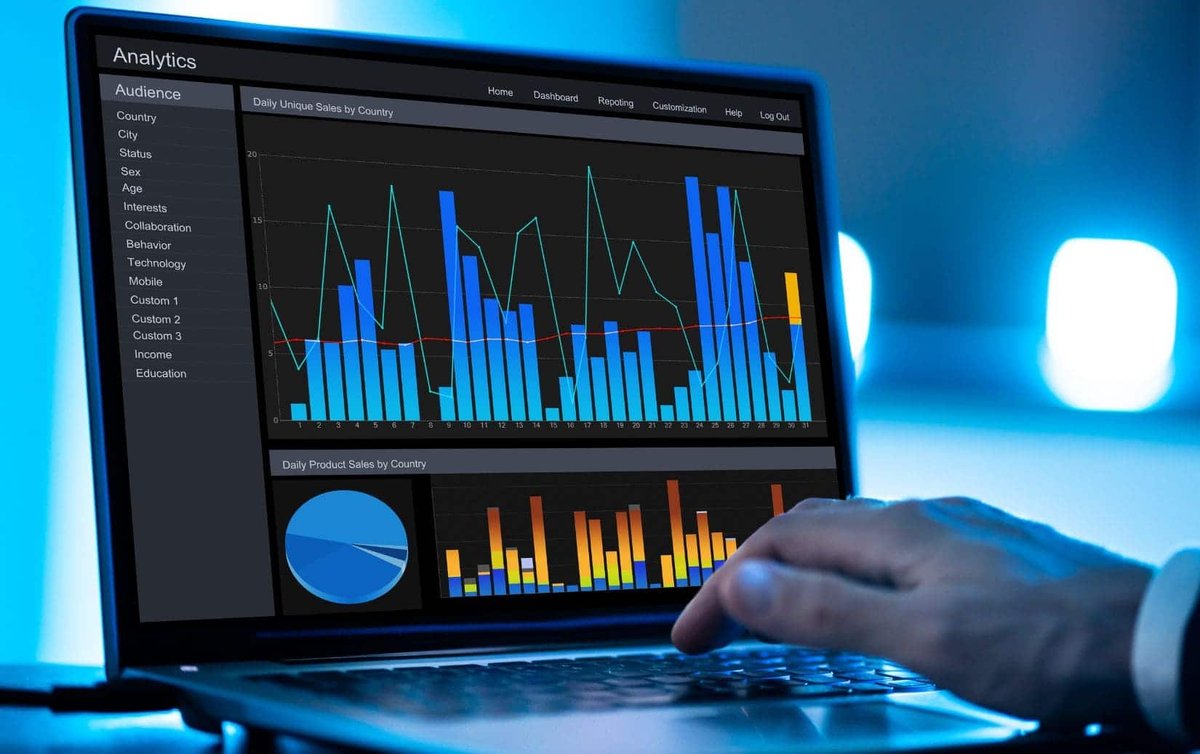
In the world of business, data is king, but raw data is often a jumbled mess. Trying to pull meaningful insights from it to fuel your business charts is like trying to make gourmet soup from unwashed, uncut vegetables straight from the garden – it's not going to be a pleasant experience, and the end result will likely be unappetizing. This is where Data Preparation & Import for Business Charts comes in, transforming your chaotic datasets into crisp, compelling visuals that drive smart decisions.
Forget about wrestling with spreadsheets or facing blank charts with dread. We're going to demystify the essential steps to get your data battle-ready, from scrubbing away inconsistencies to flawlessly importing it into your chosen visualization tool. You’ll learn how to ensure your charts don't just look pretty, but tell an accurate, impactful story.
At a Glance: Your Data Prep & Import Essentials
- Clean data is non-negotiable: Flawed data leads to misleading charts and bad decisions.
- Preparation is a multi-stage process: It involves understanding, cleaning, transforming, and structuring your data.
- Know your import options: From direct integrations (like Google Analytics) to file uploads (CSV, XLSX), choose what fits your workflow.
- Leverage AI for speed and insights: Tools like Canva's Magic Charts or ChartMagic's Smart Suggestions can instantly recommend optimal visuals.
- Prioritize data integrity and consistency: These are the bedrock of trustworthy business charts.
- Good data prep saves time: A little effort upfront prevents hours of troubleshooting later.
The Hidden Cost of "Dirty" Data: Why Preparation Matters More Than You Think
Imagine presenting a vital sales report to your executive team, only for them to point out glaring discrepancies in your bar chart. A key region's data is missing, a product category is spelled inconsistently, and the "total revenue" line graph doesn't add up. Suddenly, your credibility is on the line, and your insightful analysis turns into a damage control exercise.
This isn't an exaggeration; it's a common scenario when data hasn't been properly prepared. Dirty data—riddled with errors, inconsistencies, or incomplete information—is the silent saboteur of business intelligence. It leads to:
- Misleading Insights: If your data is wrong, your charts will tell the wrong story, leading to poor strategic decisions.
- Wasted Time: You'll spend hours troubleshooting, re-doing charts, and defending your numbers instead of analyzing and strategizing.
- Eroded Trust: When your data visuals are unreliable, stakeholders lose faith in your reports and, by extension, your recommendations.
- Inefficient Automation: Even the smartest AI-powered chart tools can't fix fundamentally flawed input. Garbage in, garbage out.
The good news? A methodical approach to data preparation tackles these issues head-on, ensuring your charts are built on a solid foundation.
What Does "Data Preparation" Actually Mean?
Data preparation is the critical process of transforming raw data into a clean, well-structured, and analysis-ready format. Think of it as the culinary arts before you even start cooking. You wouldn't throw muddy carrots, bruised potatoes, and an unopened can of tomatoes into a pot and expect a delicious stew. You clean, peel, chop, and organize. Data preparation is exactly that for your numbers.
It generally involves four key stages:
- Understanding Your Data & Goal: What data do you have? What question are you trying to answer with your chart? What audience are you targeting?
- Cleaning: Identifying and correcting errors, inconsistencies, and missing values.
- Transforming: Changing data types, creating new variables, aggregating data, or reshaping it for specific analyses.
- Structuring: Ensuring your data is in the optimal layout for your visualization tool, often a tabular format where rows are observations and columns are variables.
These steps, though seemingly tedious, are where the magic truly begins, paving the way for intuitive visual tools to work their best. Many tools help simplify the end result. For instance, you can easily create charts with our generator once your data is ready.
Stage 1: The Blueprint – Understanding Your Data and Your "Why"
Before you touch a single cell, pause. What story do you need your chart to tell? Who is your audience?
- Define Your Objective: Are you comparing sales performance across regions? Tracking website traffic trends over time? Showing market share distribution? Your objective dictates what data you need and how it should be presented.
- Identify Key Metrics & Dimensions: What numbers (metrics) are you tracking, and how do you want to categorize them (dimensions)? For a sales chart, "Revenue" might be your metric, and "Region," "Product Category," or "Month" could be your dimensions.
- Assess Data Sources: Where is your data coming from? CRM, ERP, Google Analytics, social media reports, internal spreadsheets? Knowing your sources helps you anticipate potential inconsistencies or format issues. Canva, for example, allows direct integration with Statista, Google Analytics, and HubSpot, streamlining access to diverse data streams.
Micro-Example: If you want to show monthly revenue trends, you need a date column (dimension) and a revenue column (metric). If your data combines sales and refunds into one column, you might need to separate or calculate net revenue first.
Stage 2: The Deep Clean – Scrubbing Away Data Grime
This is often the most time-consuming but crucial step. Think of it as decluttering your closet before organizing it – you need to get rid of the junk first.
A. Handling Missing Values
Empty cells are common. Decide how to address them:
- Delete Rows/Columns: If a significant portion of a row or an entire column is empty and not essential, it might be best to remove it. Be cautious, as this can lead to data loss.
- Impute (Fill In): For numerical data, you might fill missing values with the average, median, or a specific value (e.g., 0 for "no sales"). For categorical data, you might use the most frequent value or "Unknown."
- Ignore: Some visualization tools can handle nulls gracefully, or if the missing data doesn't impact your specific chart, you might leave it as is.
Example: If you're charting monthly website visitors and one month has a missing value, imputing with the average of the surrounding months might be appropriate for a line graph to maintain continuity.
B. Eliminating Duplicates
Duplicate rows can skew your totals and averages, making your charts inaccurate.
- Identify Duplicates: Most spreadsheet software (Excel, Google Sheets) has built-in functions to highlight or remove duplicates.
- Decide Which to Keep: Often, you'll want to keep the first or last instance of a record, or perhaps aggregate unique identifiers.
C. Correcting Inconsistencies & Errors
This is where human error often creeps in.
- Typographical Errors: "New York" vs. "NY" vs. "new york city." Standardize these to a single format.
- Varying Formats: Dates (1/1/2023 vs. Jan 1, 2023), currencies ($100 vs. 100). Ensure consistent formatting.
- Incorrect Data Types: A column meant for numbers might contain text ("N/A"), or numbers might be stored as text, preventing calculations. Convert these to the correct type.
- Outliers: Extremely high or low values that deviate significantly from the rest. Decide if they are true data points or errors. They can distort scales and make trends hard to see in charts.
Pro Tip: Use a "Find and Replace" function extensively for standardizing text entries. For data types, check your spreadsheet program's formatting options.
Stage 3: The Transformation – Shaping Your Data for Insights
Once clean, your data might need further manipulation to be truly useful for charting.
A. Data Type Conversions
Ensure columns are set to the correct data type (Number, Text, Date, Currency, Percentage). This is critical for calculations and proper axis labeling in charts.
B. Aggregation & Summarization
Often, your raw data is too granular. For a sales dashboard, you might need to aggregate daily sales into monthly totals or sum individual transactions by product category.
- Grouping: Use functions like SUM, AVERAGE, COUNT, MIN, MAX to summarize data based on categories (e.g., total sales by region).
- Pivoting: Transform data from a "long" format (many rows, few columns) to a "wide" format (fewer rows, more columns) or vice-versa, depending on your chart's requirements.
Example: If you have individual transaction data, you'll need to sum up sales for each product by month to create a line chart showing product performance over time.
C. Creating New Variables
Sometimes, the data you need doesn't exist directly but can be calculated from existing columns.
- Calculated Fields: "Profit Margin" = (Revenue - Cost) / Revenue. "Year over Year Growth" = (Current Year - Previous Year) / Previous Year.
- Categorization: Group numerical ranges into categories (e.g., ages 18-24, 25-34).
Stage 4: The Structure – Organizing for Seamless Import
Most business charting tools, especially user-friendly ones like Canva or ChartMagic, prefer data in a clear, tabular format.
- Rows as Observations, Columns as Variables: Each row should represent a single data point or record (e.g., a specific sales transaction, a unique customer). Each column should represent a distinct characteristic or metric (e.g., Date, Product Name, Sales Amount).
- One Header Row: Your first row should contain clear, descriptive column headers. Avoid merged cells or multiple header rows.
- No Blank Rows/Columns within the Data Range: Ensure your data forms a contiguous block.
Bad Example (for charting):
| Region | Jan Sales | Feb Sales | Mar Sales |
| :----- | :-------- | :-------- | :-------- |
| North | 100 | 120 | 110 |
| South | 80 | 90 | 95 |
This "wide" format can work for some charts, but for a line chart comparing North vs. South sales over time, a "long" format is often better:
Good Example (for charting time series):
| Region | Month | Sales |
| :----- | :---- | :---- |
| North | Jan | 100 |
| North | Feb | 120 |
| North | Mar | 110 |
| South | Jan | 80 |
| South | Feb | 90 |
| South | Mar | 95 |
This "long" format makes it much easier for tools to understand "Month" as a time dimension and "Region" as a categorical split, letting you chart sales trends effortlessly.
Importing Your Data: Connecting the Dots
Once your data is prepped, getting it into your chart maker should be straightforward. Modern visualization platforms offer various flexible options.
A. File Uploads: The Universal Standard
The most common and flexible method. Most tools support:
- CSV (Comma Separated Values): A plain text file, excellent for simple, structured data.
- XLSX (Microsoft Excel Open XML Spreadsheet): Supports multiple sheets, formatting, and formulas. Ideal if you've done extensive preparation in Excel.
- TSV (Tab Separated Values): Similar to CSV but uses tabs as delimiters.
When uploading files, ensure your file is saved in one of these formats, and that your spreadsheet only contains the data you want to chart, preferably on a single sheet with clean headers. Canva's Graph Maker, for instance, provides a clear path for importing these file types.
B. Direct Integrations: Seamless & Dynamic
For common business tools, direct connections save time and often allow for automatic data refreshing.
- Business Analytics Platforms: Canva integrates directly with services like Statista, Google Analytics, and HubSpot. This means you can pull data directly from these sources without manual exports.
- Cloud Spreadsheets: ChartMagic, for example, supports data upload from Google Sheets, offering convenience for teams collaborating in the cloud.
- Internal Data Tools: Canva Sheets allows you to edit data in one central sheet, instantly updating all linked charts within your Canva designs – a powerful feature for maintaining consistency across multiple visuals.
Key Benefit: Automatic Data Refresh: Some integrations (like those with Google Analytics) can be set to automatically refresh, ensuring your charts always display the most up-to-date information without you lifting a finger. This is invaluable for dashboards and real-time reporting.
C. Manual Input: Quick & Dirty for Small Datasets
For very small datasets or quick one-off charts, you can often manually type or copy-paste data directly into the chart tool's internal spreadsheet interface. While convenient for small jobs, it's not scalable for larger or frequently updated datasets.
The "Magic" of AI in Chart Creation: From Data to Visuals in Seconds
Once your data is clean and imported, this is where modern tools truly shine. They move beyond just being a canvas and become intelligent assistants.
- Smart Chart Suggestions: Tools like Canva's Magic Charts and ChartMagic's Smart Suggestions analyze your data and instantly recommend optimal chart types. Got time-series data? It'll suggest a line chart. Comparing categories? Bar chart. Parts of a whole? Pie or donut. This eliminates guesswork and helps you leverage best practices without being a data visualization expert.
- Instant Insights: ChartMagic promises "Instant Insights," transforming data into visuals in under 10 seconds. Canva's Magic Insights goes a step further, using AI to identify patterns, trends, and key takeaways within your data, producing clear visuals and summaries. This can be a game-changer for quickly grasping the narrative hidden in your numbers.
- Beautiful by Default: Many platforms, like ChartMagic, prioritize minimal designs that are "Beautiful by Default," meaning you don't need design skills to create professional-looking charts.
How it helps with Data Preparation: While AI can't fix fundamentally dirty data, it can help you quickly visualize what you have, highlighting potential issues you might have missed during prep. Seeing a bar chart with an "Other" category that's 90% of your data can immediately tell you there's an issue with your categorization. Even with smart suggestions, remember that the underlying data quality is key to truly valuable output when you create charts with our generator.
Beyond the Basic Import: Best Practices & Pitfalls to Avoid
Getting your data in is just part of the battle. Here are some pro tips and common traps:
Best Practices for Data Integrity
- Document Your Process: Keep notes on how you cleaned and transformed your data. This is invaluable for reproducibility and collaboration.
- Regular Audits: Periodically check your data sources and preparation steps to ensure continued accuracy.
- Version Control: If you're manipulating data manually, save versions of your dataset (e.g.,
data_raw.xlsx,data_cleaned.xlsx,data_final_chart.xlsx). - Data Security: Ensure sensitive business data is handled with appropriate security measures, especially when using cloud-based tools.
- Build a Brand Kit: Canva allows you to integrate chart styles into your Brand Kit for consistent branding, ensuring your visuals always align with your company's look and feel.
Common Pitfalls to Sidestep
- Ignoring the "Why": Don't just make a chart because you have data. Always start with the question you want to answer.
- Over-Cleaning: While cleaning is essential, don't remove legitimate outliers just because they look messy. Understand why an outlier exists before removing it.
- Mismatched Data Types: Trying to average text fields or sort dates incorrectly. Always double-check your data types before charting.
- Using Too Many Chart Types: While tools offer many options (bar, line, pie, radar, treemaps, etc.), stick to the simplest chart that tells your story effectively. Don't use a 3D pie chart just because it's an option.
- Forgetting Collaboration: Business insights are rarely solo endeavors. Platforms like Canva support real-time team collaboration with comments, mentions, and reactions, making data storytelling a shared process.
- Not Leveraging Auto-Refresh: If your data changes frequently, make sure to set up auto-refresh where available to avoid manually updating charts every time.
Addressing Common Questions & Misconceptions
Q: Can AI fix my dirty data automatically?
A: Not entirely. AI tools like Magic Charts can suggest optimal chart types and identify patterns in existing data, but they can't magically infer missing values or correct inconsistent spellings with 100% accuracy. Human oversight during the cleaning and transformation stages is still crucial. AI is a powerful assistant, not a replacement for good data governance.
Q: How do I know if my data is "clean enough"?
A: Your data is "clean enough" when you can confidently say it accurately reflects reality, all necessary fields are present and correctly formatted, and it directly answers the question your chart is meant to address. If you find yourself second-guessing the numbers in your chart, it's likely not clean enough.
Q: Is it okay to modify my raw data directly?
A: Generally, no. Always work on a copy of your raw data. This preserves the original source if you make a mistake or need to revert to an earlier version. For advanced users, scripting (e.g., Python with Pandas) can automate this, ensuring raw data remains untouched.
Q: What if my data is in a format not supported for direct import?
A: Most unsupported formats can be converted. Software like Excel or Google Sheets can often open and then save data into supported formats like CSV or XLSX. Sometimes, a simple copy-paste into a new spreadsheet is all you need before saving.
Q: How frequently should I refresh my data for charts?
A: It depends on the dynamism of your data and the purpose of the chart. For a daily sales dashboard, daily or even hourly refresh might be needed. For an annual report, a yearly refresh is sufficient. Leverage auto-refresh features whenever your data source supports it.
Your Path to Impactful Business Charts
Creating powerful business charts isn't about being a data wizard; it's about being meticulous and strategic in your approach. By investing time in proper data preparation and understanding your import options, you transform raw information into clear, actionable insights.
From standardizing "New York" to "NY," to summing up monthly totals, every step you take in data preparation brings you closer to a chart that tells an undeniable story. With the help of intuitive tools and AI-powered features that suggest charts and surface insights, the journey from data to visualization is becoming faster and more intelligent than ever before.
So, go forth. Clean your data, import it with confidence, and start building charts that don't just display numbers, but inspire informed action. The clarity you bring to your data will be the clarity you bring to your business decisions.